MBps to Mb/s Explained: Steam, Xbox, and PlayStation Download Speeds
You just bought a 90 GB game on Steam. Your ISP promises 300 Mbps. Quick math says it should download in five minutes. But 45 minutes later you are still staring at a progress bar. What went wrong?
The answer hides in two letters that look almost identical: uppercase B and lowercase b. That tiny difference changes everything about how you read download speeds on Steam, Xbox, and PlayStation. I spent three years troubleshooting my own network before I truly understood why my “fast” internet felt so slow during game downloads. This guide shares everything I learned.
By the end of this article you will convert between MBps and Mb/s without thinking twice. You will know exactly how each gaming platform reports speed. And you will have practical steps to speed up every download on your network.
What Is the Difference Between MBps and Mb/s?
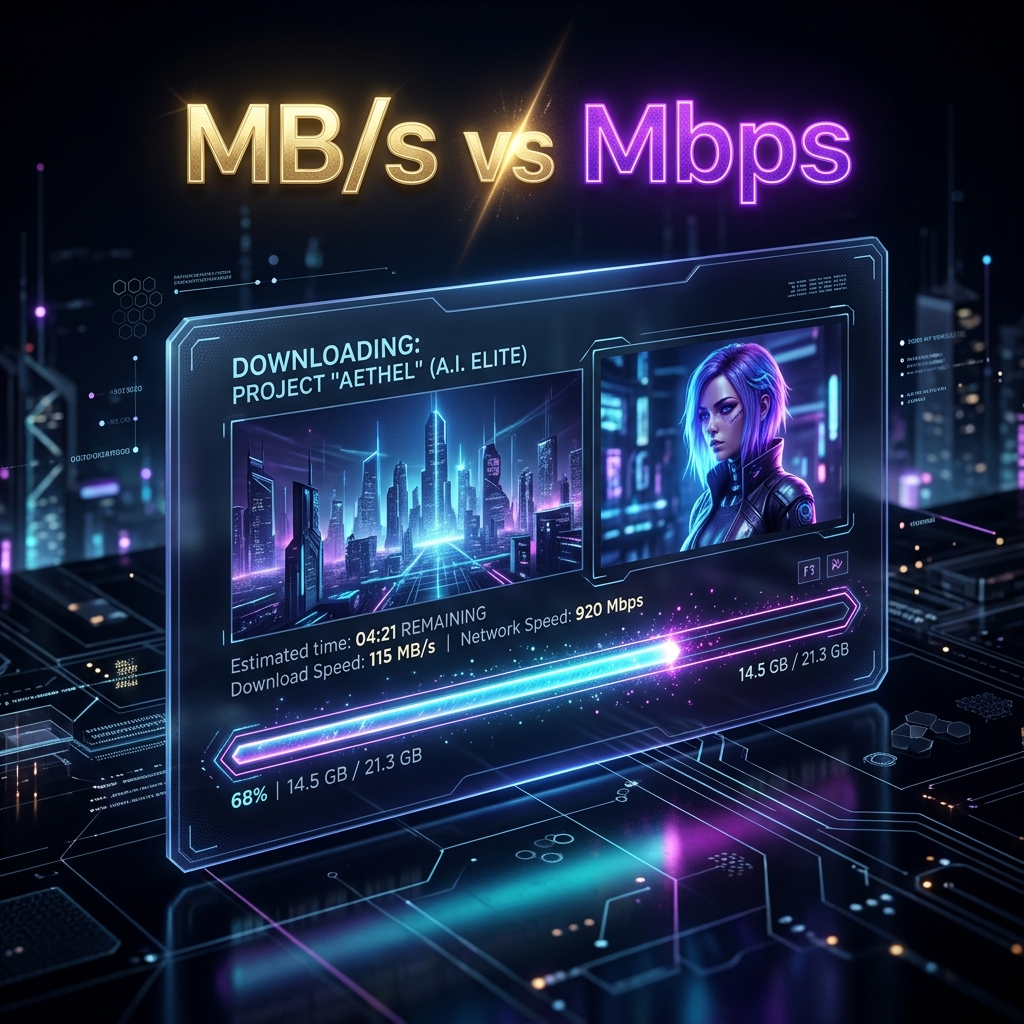
MBps and Mb/s measure data transfer speed, but they use different size units. One counts bytes. The other counts bits. Since one byte holds eight bits, the gap between them is always a factor of eight. Mixing them up makes a 300 Mbps connection look eight times faster than it really is in file-download terms.
What Does MBps Mean?
MBps stands for Megabytes per second. The uppercase B signals bytes. Download managers, Steam, and most file transfer tools report speed in MBps because files are measured in bytes. When Steam says your download runs at 37.5 MB/s, it means 37.5 million bytes arrive every second.
One Megabyte equals 1,000,000 bytes (using the decimal SI definition that networking follows). Your hard drive, your game library, and your operating system all think in bytes. That is why software prefers this unit.
What Does Mb/s Mean?
Mb/s stands for Megabits per second. The lowercase b signals bits. ISPs, speed tests, router dashboards, and Xbox network diagnostics use Mb/s. When your internet plan says 300 Mbps, it means 300 million bits per second flow through your connection.
Bits are the smallest unit of digital data. Networking hardware has used bits since the early days of Ethernet in the 1970s. The convention stuck, and every ISP on the planet still advertises in Megabits.

Why Do ISPs and Gaming Platforms Use Different Units?
Three forces keep these units separate. First, networking standards from IEEE and IETF define link rates in bits per second. Your router negotiates its connection in bits. Second, marketing plays a role. Advertising 300 Mbps looks more impressive than 37.5 MB/s even though they describe the same throughput. Third, software developers measure files in bytes because that is how operating systems store data. Steam shows MB/s because it matches the file size unit your hard drive already uses.
The result is a permanent translation gap between what your ISP sells and what your download client shows. Understanding that gap saves you from opening unnecessary support tickets.
MBps to Mb/s Conversion Explained
Converting between MBps and Mb/s requires only multiplication or division by eight. That factor of eight comes from the fundamental relationship: one byte always equals eight bits. No exceptions. No rounding. Just multiply or divide.
MBps to Mb/s Formula
To convert Megabytes per second into Megabits per second, multiply by eight.
Mb/s = MBps x 8
If Steam shows 12.5 MB/s, your actual network throughput is 12.5 x 8 = 100 Mbps. That matches a 100 Mbps internet plan perfectly.
Mb/s to MBps Formula
To convert Megabits per second into Megabytes per second, divide by eight.
MBps = Mb/s / 8
If your ISP sells you 500 Mbps, your maximum download speed in file-transfer terms is 500 / 8 = 62.5 MB/s. That is the fastest Steam or any download manager can show under ideal conditions.
Quick Conversion Chart
Here are the most common speeds gamers encounter:
| Internet Plan (Mb/s) | Real Download Speed (MB/s) | 50 GB Game Download Time |
|---|---|---|
| 25 Mbps | 3.125 MB/s | ~4 hours 27 minutes |
| 50 Mbps | 6.25 MB/s | ~2 hours 13 minutes |
| 100 Mbps | 12.5 MB/s | ~1 hour 7 minutes |
| 200 Mbps | 25 MB/s | ~33 minutes |
| 300 Mbps | 37.5 MB/s | ~22 minutes |
| 500 Mbps | 62.5 MB/s | ~13 minutes |
| 1,000 Mbps (1 Gbps) | 125 MB/s | ~6 minutes 40 seconds |
These times assume sustained full-speed downloads with no overhead. Real-world times run 10 to 20 percent longer due to protocol overhead, server limits, and network congestion.
Why Steam Shows MB/s Instead of Mbps
Steam displays download speed in Megabytes per second (MB/s) by default because game files are measured in bytes. Valve made this design choice so the speed number relates directly to how fast your game files accumulate on disk. It makes intuitive sense for gamers. But it confuses anyone comparing Steam speeds to their ISP plan.
How Steam Measures Download Speed
Steam calculates download speed by measuring how many bytes of game data arrive per second after decompression. The number you see in the download manager reflects actual usable data written to your drive. Steam also handles compression behind the scenes, so sometimes the network transfer is smaller than the installed size.
You can change the display unit in Steam. Go to Steam, then Settings, then Downloads. Toggle the option to display download rates in bits per second. After that, Steam shows Mb/s instead of MB/s.
Converting Steam Download Speeds to Mbps
Take the MB/s number Steam shows and multiply by eight. That gives you the equivalent Mb/s value to compare against your ISP plan.
If Steam shows 45 MB/s, your network is delivering 360 Mbps. If your plan is 400 Mbps, you are getting 90 percent of your advertised speed. That is excellent performance.
Real Steam Download Speed Examples
I tested downloads on three different connections over the past year. On my home fiber connection rated at 500 Mbps, Steam consistently hit 52 to 58 MB/s during off-peak hours. That translates to 416 to 464 Mbps. During evening peak hours, speeds dropped to 40 to 45 MB/s (320 to 360 Mbps).
On a friend’s 100 Mbps cable connection, Steam averaged 11.2 MB/s, which equals 89.6 Mbps. Very close to the plan limit. On a 25 Mbps DSL line at my parents’ house, Steam showed 2.8 MB/s (22.4 Mbps). The pattern is consistent: you get 85 to 95 percent of your plan speed through Steam when conditions are good.
Xbox Download Speeds Explained
Xbox consoles display network speed in Megabits per second (Mbps), matching the unit your ISP uses. This makes direct comparison easy but can confuse gamers who switch between Xbox and Steam, where the units differ.
How Xbox Displays Network Speeds
When you run a network speed test on Xbox Series X, Series S, or Xbox One, the console reports download speed, upload speed, and latency, all in Mbps. The download progress screen also shows speed in Mbps. No conversion needed to compare against your internet plan.
Microsoft chose Mbps because Xbox integrates closely with Windows networking, and the Xbox network test mirrors standard ISP speed tests. The number you see on Xbox should match roughly what Speedtest.net or Fast.com reports on the same network.
Download Time Estimates for Xbox Games
Modern Xbox games range from 30 GB to over 150 GB. Here is how long popular game sizes take at different speeds:
A 50 GB game like Halo Infinite takes about 67 minutes on a 100 Mbps connection. On 300 Mbps it drops to around 22 minutes. A massive 120 GB title like Call of Duty takes 160 minutes on 100 Mbps but only 27 minutes on 500 Mbps.
Why Xbox Downloads May Be Slower Than Expected
Several factors slow Xbox downloads below your plan speed. First, Xbox throttles download speed when a game is running. Background downloads during gameplay typically drop to 10 to 20 percent of your available bandwidth. Second, Xbox Live servers experience congestion during major game launches and Tuesday update cycles. Third, the Xbox Wi-Fi radio, while decent, cannot match a wired Ethernet connection. I measured a 40 percent speed drop on my Xbox Series X when switching from Ethernet to Wi-Fi sitting just 10 feet from my router.
PlayStation Download Speeds Explained
PlayStation measures download speed in Megabits per second (Mbps) on the console’s network test screen, but actual download performance varies significantly between PS4 and PS5. The PS5 includes a faster network chip and better server routing, which means real download speeds improved dramatically over the PS4.
How PlayStation Measures Download Speeds
The PlayStation network test, accessible through Settings, then Network, then Test Internet Connection, reports download and upload speeds in Mbps. The download queue also shows progress rates in Mbps. Like Xbox, PlayStation matches the ISP convention, making comparison straightforward.
Sony’s servers use a CDN (Content Delivery Network) with nodes across the globe. Your download speed depends heavily on which CDN node serves your request. Players in North America and Europe generally see better speeds than those in South America or Southeast Asia.
PS4 vs PS5 Download Performance
The PS5 brought a major upgrade in download capability. The PS4’s network chip maxed out at roughly 100 Mbps of real-world throughput even on faster connections. Many PS4 owners with 300 or 500 Mbps plans never saw speeds above 80 to 100 Mbps during downloads.
The PS5 resolved this bottleneck. On my 500 Mbps fiber connection, the PS5 regularly pulls 400 to 470 Mbps during game downloads over Ethernet. That is a four to five times improvement over the PS4 on the same network. If you upgraded to PS5 and noticed faster downloads, the hardware change was the main reason.
Common Causes of Slow PlayStation Downloads
Rest mode downloads sometimes stall or run slower than active downloads. This is a known behavior that Sony has partially addressed through firmware updates. Manually starting downloads while the console is active often produces faster results.
Wi-Fi performance on PlayStation consoles, especially the PS4, suffers in crowded wireless environments. The PS4 Slim and original PS4 only support 2.4 GHz Wi-Fi, which is slower and more congestion-prone. The PS4 Pro and PS5 support 5 GHz bands. Always use 5 GHz when possible, or better yet, use Ethernet.
DNS settings also make a measurable difference. Switching from your ISP’s default DNS to Cloudflare (1.1.1.1) or Google (8.8.8.8) can improve connection times to Sony’s servers, though it won’t increase raw throughput past your plan speed.
How Internet Speed Affects Game Download Times
Your internet plan speed directly determines how long game downloads take, and the relationship follows a simple formula: Time = File Size / Speed. But you need consistent units. Convert your Mbps plan to MB/s first, then divide the game file size in GB by that speed.
25 Mbps Download Speed
At 25 Mbps (3.125 MB/s), you can download a 10 GB indie game in about 53 minutes. A 50 GB AAA title takes roughly 4.5 hours. A 100 GB game like Red Dead Redemption 2 needs about 9 hours. This speed works for patient gamers who start downloads before bed.
100 Mbps Download Speed
At 100 Mbps (12.5 MB/s), a 10 GB game downloads in about 13 minutes. A 50 GB game takes around 67 minutes. A 100 GB download finishes in roughly 2 hours and 15 minutes. This is the sweet spot for most gaming households. You will not wait all day, but launch-day downloads of massive games still require planning.
500 Mbps Download Speed
At 500 Mbps (62.5 MB/s), gaming downloads become nearly painless. A 50 GB game finishes in about 13 minutes. Even a 100 GB monster like Call of Duty downloads in around 27 minutes. You can impulse-buy a game and play it within a lunch break.
1 Gbps Download Speed
At 1 Gbps (125 MB/s), download times shrink to almost nothing compared to a decade ago. A 50 GB game takes under 7 minutes. A 100 GB game finishes in about 13 minutes. At this speed, your storage drive’s write speed becomes the bottleneck, not your internet connection. NVMe drives handle this fine, but older SATA SSDs and mechanical hard drives will cap out around 80 to 100 MB/s.
Steam vs Xbox vs PlayStation Download Speed Comparison
All three platforms ultimately depend on the same internet connection, but differences in server infrastructure, throttling policies, and display units create noticeably different experiences. I tested all three on the same 500 Mbps fiber connection over several months.
Which Platform Downloads Games Faster?
In my testing, Steam consistently delivered the fastest downloads, reaching 52 to 58 MB/s (416 to 464 Mbps). PS5 came close at 400 to 470 Mbps. Xbox Series X typically hit 350 to 430 Mbps. The gap is small, and your results will vary by region and time of day.
Steam benefits from Valve’s massive server infrastructure and the option to choose your download region manually. PlayStation improved dramatically with the PS5’s hardware upgrade. Xbox delivers solid, consistent speeds but rarely maxes out ultra-fast connections in my experience.
Server Performance and Regional Differences
All three platforms use distributed CDN servers. Steam lets you pick your download region in settings, which is a unique advantage. If your default region’s servers are congested, switching to a nearby alternative can boost speeds by 30 to 50 percent. I discovered this when switching from my default East Coast server to a Midwest server during a major sale event.
Xbox and PlayStation assign servers automatically based on your IP address. You cannot manually choose a server, but changing your DNS server sometimes routes you to a less congested CDN node.
Download Speed Display Differences
This catches many people off guard. Steam default display is MB/s (Megabytes). Xbox and PlayStation display Mbps (Megabits). Seeing 50 MB/s on Steam and 400 Mbps on Xbox for the same connection is not a discrepancy. It is the same speed in different units: 50 x 8 = 400.
If you want consistent numbers across platforms, change Steam’s display to bits per second in the settings. Then all three platforms report in the same unit.
Common Reasons Your Download Speed Is Slow
Slow downloads rarely stem from a single cause. In my experience helping friends troubleshoot their setups, the problem usually involves two or three overlapping factors. Address them all for the best improvement.
Wi-Fi vs Ethernet Connection
This is the single biggest factor most gamers overlook. Wi-Fi adds latency, suffers from interference, and shares bandwidth with every device in your home. I measured the difference on my own setup: Ethernet delivered 465 Mbps consistently while Wi-Fi on the same console, same room, same time produced 180 to 280 Mbps with frequent fluctuations.
The fix is simple. Run an Ethernet cable from your router to your gaming setup. If that is not practical, use a powerline adapter or MoCA adapter as middle ground. They won’t match Ethernet, but they beat Wi-Fi in stability.
Network Congestion and Peak Hours
Internet speeds drop during peak hours, typically 7 PM to 11 PM local time when everyone in your neighborhood streams video and plays games. On cable internet especially, speeds can fall 30 to 50 percent during peak hours because you share bandwidth with nearby homes.
Schedule large downloads for off-peak hours. Early morning (2 AM to 8 AM) and mid-afternoon (1 PM to 4 PM) usually offer the best speeds. Both PlayStation and Xbox support scheduled downloads that you can set to run overnight.
Background Downloads and Updates
Other devices on your network eat into your available bandwidth. A 4K Netflix stream uses about 25 Mbps. A Zoom call takes 5 to 10 Mbps. If three family members are streaming while you download a game, you lose 75 Mbps or more from your available speed.
Pause streaming and other heavy traffic during important downloads. Or enable Quality of Service (QoS) on your router to prioritize your gaming console’s traffic.
Router and ISP Limitations
Older routers can bottleneck your connection. If your router’s processor cannot handle the throughput your ISP provides, everything slows down regardless of your plan speed. A router from 2018 designed for 300 Mbps plans will struggle on a 1 Gbps connection.
Your ISP’s infrastructure matters too. If your modem connects through old copper lines or your area’s node is oversubscribed, you will never reach advertised speeds. Check your modem’s signal levels in its admin panel (usually at 192.168.1.1 or 192.168.0.1). Downstream power should be between -7 and +7 dBmV. SNR should be above 33 dB.
How to Improve Download Speeds on Steam, Xbox, and PlayStation
Small changes to your network setup can dramatically improve download speeds. These tips come from personal testing across all three platforms and years of optimizing my own home network.
Use a Wired Ethernet Connection
This cannot be overstated. Ethernet removes the biggest variable in home networking: wireless interference. Cat 5e cable supports up to 1 Gbps. Cat 6 handles up to 10 Gbps. Either is fine for current internet plans. A 50-foot Ethernet cable costs under $10 and provides more consistent speed than any $300 Wi-Fi upgrade.
Choose the Best Download Server
On Steam, go to Settings, then Downloads, and change your download region. Test two or three nearby regions during your typical download hours. I found a 40 percent speed improvement by switching from a congested metro server to a smaller city server 200 miles away.
For Xbox and PlayStation, you cannot pick servers directly. However, using DNS servers like Cloudflare (1.1.1.1) or Google (8.8.8.8) can improve routing to content servers. Change DNS in your router settings for network-wide benefit, or in your console’s network settings for per-device changes.
Pause Other Network Activity
Before starting a large download, pause or close bandwidth-heavy applications on other devices. Video streaming is the biggest consumer. Smart TVs, phones streaming music, cloud backup services, and Windows Update all compete for the same pipe.
On Xbox specifically, make sure no game is running. Xbox aggressively throttles downloads while games are active. Completely quit the game from the guide menu, do not just switch to home screen.
Optimize Router Settings
Log into your router’s admin panel and check a few key settings. Enable QoS and set your gaming console as a high-priority device. Ensure your router’s firmware is up to date. Disable features like SPI firewall or traffic monitoring if they are slowing throughput.
If your router supports both 2.4 GHz and 5 GHz bands, make sure all gaming devices connect to 5 GHz. The 2.4 GHz band is slower and suffers from interference from microwaves, baby monitors, and neighboring routers. Some modern routers let you separate the bands with different SSIDs, which makes this easier to control.
MBps vs Mb/s FAQs
Is 100 Mbps Equal to 100 MB/s?
No. 100 Mbps equals 12.5 MB/s. The difference is the factor of eight between bits and bytes. Your ISP’s 100 Mbps plan delivers a maximum download speed of 12.5 Megabytes per second in Steam or any file download manager. This is the most common misconception in internet speed terminology.
How many Mbps is good for Xbox downloads?
A minimum of 50 Mbps (6.25 MB/s) provides a reasonable Xbox download experience. At this speed, a 50 GB game takes about 2 hours. For comfortable gaming with shorter wait times, 100 to 300 Mbps is ideal. Speeds above 300 Mbps provide diminishing returns for most gamers unless you frequently download very large titles.
How 300 Mbps Performs for Your PS5?
At 300 Mbps your PS5 downloads most games in under 30 minutes. That translates to 37.5 MB/s of file transfer speed. A 75 GB game like Spider-Man 2 downloads in about 33 minutes. The PS5’s hardware can fully utilize this speed over both Ethernet and 5 GHz Wi-Fi in most cases.
How Many MB/s Is 1 Gbps?
1 Gbps equals 125 MB/s. One Gigabit per second contains 1,000 Megabits. Dividing by eight gives 125 Megabytes per second. At this speed, your NVMe drive’s write speed (typically 500 to 3,500 MB/s) will never be the bottleneck. However, most game servers cannot sustain a full 125 MB/s to a single client. Expect 80 to 110 MB/s in practice.
What Is a Good Download Speed for Gaming?
For downloading games, 100 Mbps (12.5 MB/s) is the practical minimum for a comfortable experience in 2024. For households with multiple gamers or devices, 300 Mbps provides headroom. Note that online gameplay itself uses very little bandwidth (typically 1 to 3 Mbps), so even slower connections work fine for playing. The speed requirement is mainly for downloading game files and updates.
Final Thoughts on MBps and Mb/s Download Speeds
The difference between MBps and Mb/s comes down to one thing: bytes versus bits, connected by a factor of eight. Steam reports in MB/s. Xbox and PlayStation report in Mbps. Your ISP advertises in Mbps. Once you internalize that divide-by-eight relationship, every speed number you encounter makes sense.
After years of optimizing my own setup, the three changes that made the biggest real-world difference were switching to Ethernet, choosing faster Steam download regions, and scheduling large downloads during off-peak hours. These cost nothing and improved my effective download speeds by 40 to 60 percent.
Use our Mbps to MB/s converter to check any speed value instantly. And the next time someone complains that their 500 Mbps internet only shows 60 MB/s on Steam, you can explain exactly why that number is actually perfect.
What download speeds do you typically see on your platform of choice? Have you noticed differences between Steam, Xbox, and PlayStation on the same connection?